 Michael (XIAO Xufeng)
2905cbbe03
Michael (XIAO Xufeng)
2905cbbe03
introduced ine44ead53561. The int8M power domain config by default is PD. While LEDC is using RTC8M as clock source, this power domain will be kept on. But when 8MD256 is used as RTC clock source, the power domain should also be kept on. On ESP32, there was protection for it, but broken by commite44ead5356. Currently the power domain will be forced on when LEDC is using RTC8M as clock source && !int8m_pd_en (user enable ESP_PDP_DOMAIN_RTC8M in lightsleep). Otherwise the power domain will be powered off, regardless of RTC clock source. In other words, int8M domain will be forced off (even when 8MD256 used as RTC clock source) if LEDC not using RTC8M as clock source, user doesn't enable ESP_PDP_DOMAIN_RTC8M, or in deep sleep. On later chips, there's no such protection, so 8MD256 could't be used as RTC clock source in sleep modes. This commit adds protection of 8MD256 clock to other chips. Fixes the incorrect protection logic overriding on ESP32. Now the power domain will be determiend by the logic below (order by priority): 1. When RTC clock source uses 8MD256, power up 2. When LEDC uses RTC8M clock source, power up 3. In deepsleep, power down 4. Otherwise determined by user config of ESP_PDP_DOMAIN_RTC8M, power down by default. (This is preferred to have highest priority, but it's kept as is because of current code structure.) 2. Before, after the macro `RTC_SLEEP_CONFIG_DEFAULT` decides dbias, the protection above may force the int8m PU. This may cause the inconsistent of dbias and the int8m PU status. This commit lifts the logic of pd int8m/xtal fpu logic to upper layer (sleep_modes.c). Related: https://github.com/espressif/esp-idf/issues/8007, https://github.com/espressif/esp-idf/pull/8089 temp
Espressif IoT Development Framework
ESP-IDF is the development framework for Espressif SoCs supported on Windows, Linux and macOS.
ESP-IDF Release Support Schedule
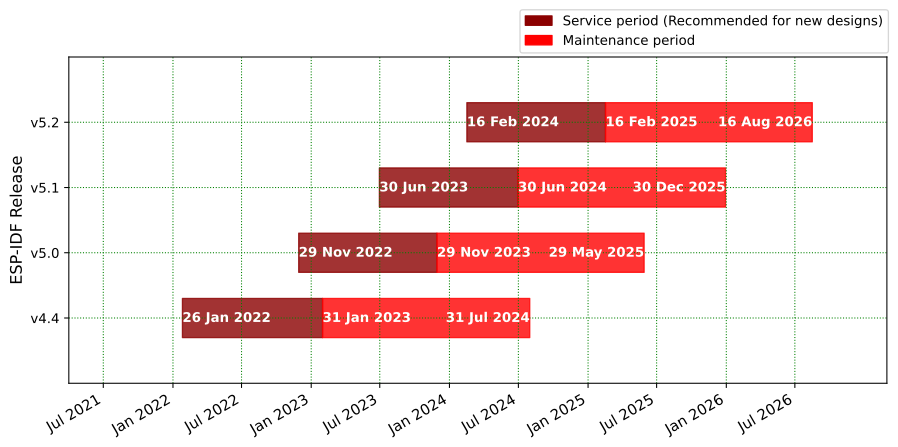
- Please read the support policy and the documentation for more information about ESP-IDF versions.
- Please see the End-of-Life Advisories for information about ESP-IDF releases with discontinued support.
ESP-IDF Release and SoC Compatibility
The following table shows ESP-IDF support of Espressif SoCs where 

| Chip | v4.1 | v4.2 | v4.3 | v4.4 | v5.0 | |
|---|---|---|---|---|---|---|
| ESP32 | |
|
|
|
|
|
| ESP32-S2 | |
|
|
|
||
| ESP32-C3 | |
|
|
|||
| ESP32-S3 | |
|
Announcement | |||
| ESP32-C2 | |
Announcement | ||||
| ESP32-H2 | |
|
Announcement |
Espressif SoCs released before 2016 (ESP8266 and ESP8285) are supported by RTOS SDK instead.
Developing With ESP-IDF
Setting Up ESP-IDF
See https://idf.espressif.com/ for links to detailed instructions on how to set up the ESP-IDF depending on chip you use.
Note: Each SoC series and each ESP-IDF release has its own documentation. Please see Section Versions on how to find documentation and how to checkout specific release of ESP-IDF.
Non-GitHub forks
ESP-IDF uses relative locations as its submodules URLs (.gitmodules). So they link to GitHub. If ESP-IDF is forked to a Git repository which is not on GitHub, you will need to run the script tools/set-submodules-to-github.sh after git clone.
The script sets absolute URLs for all submodules, allowing git submodule update --init --recursive to complete. If cloning ESP-IDF from GitHub, this step is not needed.
Finding a Project
As well as the esp-idf-template project mentioned in Getting Started, ESP-IDF comes with some example projects in the examples directory.
Once you've found the project you want to work with, change to its directory and you can configure and build it.
To start your own project based on an example, copy the example project directory outside of the ESP-IDF directory.
Quick Reference
See the Getting Started guide links above for a detailed setup guide. This is a quick reference for common commands when working with ESP-IDF projects:
Setup Build Environment
(See the Getting Started guide listed above for a full list of required steps with more details.)
- Install host build dependencies mentioned in the Getting Started guide.
- Run the install script to set up the build environment. The options include
install.batorinstall.ps1for Windows, andinstall.shorinstall.fishfor Unix shells. - Run the export script on Windows (
export.bat) or source it on Unix (source export.sh) in every shell environment before using ESP-IDF.
Configuring the Project
idf.py set-target <chip_name>sets the target of the project to<chip_name>. Runidf.py set-targetwithout any arguments to see a list of supported targets.idf.py menuconfigopens a text-based configuration menu where you can configure the project.
Compiling the Project
idf.py build
... will compile app, bootloader and generate a partition table based on the config.
Flashing the Project
When the build finishes, it will print a command line to use esptool.py to flash the chip. However you can also do this automatically by running:
idf.py -p PORT flash
Replace PORT with the name of your serial port (like COM3 on Windows, /dev/ttyUSB0 on Linux, or /dev/cu.usbserial-X on MacOS. If the -p option is left out, idf.py flash will try to flash the first available serial port.
This will flash the entire project (app, bootloader and partition table) to a new chip. The settings for serial port flashing can be configured with idf.py menuconfig.
You don't need to run idf.py build before running idf.py flash, idf.py flash will automatically rebuild anything which needs it.
Viewing Serial Output
The idf.py monitor target uses the idf_monitor tool to display serial output from Espressif SoCs. idf_monitor also has a range of features to decode crash output and interact with the device. Check the documentation page for details.
Exit the monitor by typing Ctrl-].
To build, flash and monitor output in one pass, you can run:
idf.py flash monitor
Compiling & Flashing Only the App
After the initial flash, you may just want to build and flash just your app, not the bootloader and partition table:
idf.py app- build just the app.idf.py app-flash- flash just the app.
idf.py app-flash will automatically rebuild the app if any source files have changed.
(In normal development there's no downside to reflashing the bootloader and partition table each time, if they haven't changed.)
Erasing Flash
The idf.py flash target does not erase the entire flash contents. However it is sometimes useful to set the device back to a totally erased state, particularly when making partition table changes or OTA app updates. To erase the entire flash, run idf.py erase-flash.
This can be combined with other targets, ie idf.py -p PORT erase-flash flash will erase everything and then re-flash the new app, bootloader and partition table.
Resources
-
Documentation for the latest version: https://docs.espressif.com/projects/esp-idf/. This documentation is built from the docs directory of this repository.
-
The esp32.com forum is a place to ask questions and find community resources.
-
Check the Issues section on github if you find a bug or have a feature request. Please check existing Issues before opening a new one.
-
If you're interested in contributing to ESP-IDF, please check the Contributions Guide.